One keyboard and mouse.
Every PC on your desk.
Move your cursor past the edge of the screen and keep working on the next PC. Clipboard, files and even your Korean IME state follow you — directly over your local network.
Arrange screens the way your desk looks
Place your PCs in the LinkDesk control panel where they really sit, and the cursor crosses at those edges.
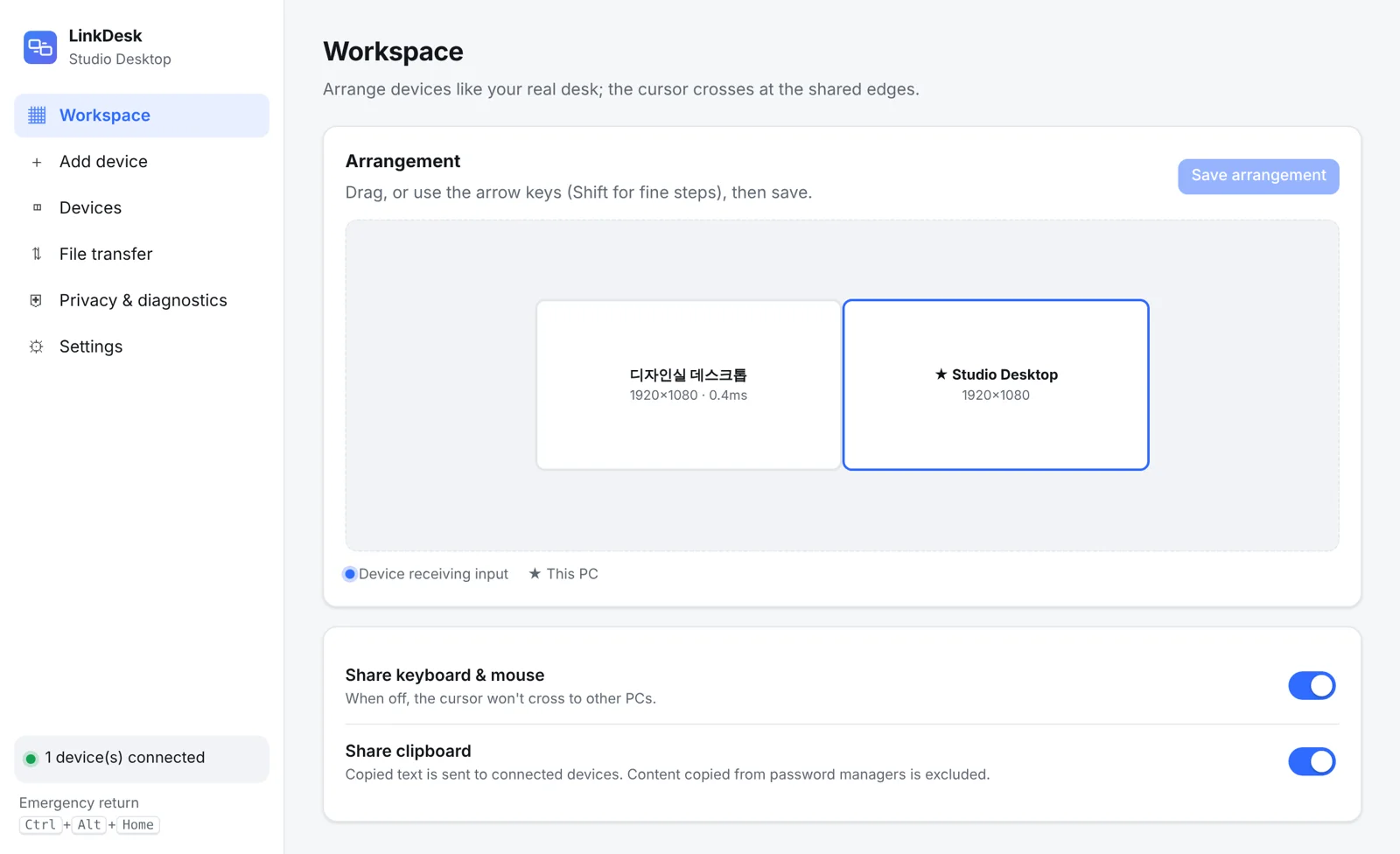
- Secure 6-digit pairing
- Drag to arrange screens
- Live connection and latency
Up and running in three steps
No cloud account, no IP addresses to type. LinkDesk finds your PCs on the same network.
- 1
Install on each PC
Run the installer on your main PC and on every PC or laptop you want to control. It takes about a minute.
- 2
Confirm the 6-digit code
Both screens show the same code, like 482 913. Confirm it on each PC to pair them securely.
- 3
Move across the edge
Arrange the screens, then push the cursor past the edge. Your keyboard, mouse and clipboard follow.
Built for real desks with more than one PC
Everything you need to work across PCs as if they were one — with security that is on by default.
One keyboard & mouse
Push past the screen edge and keep working on the next PC. Shortcuts and scrolling work as usual.
Clipboard that gets Korean right
Copy on one PC and paste on another. The input bridge keeps your 한/영 IME state correct, so you never type in the wrong language.
File transfer with approval
Send files between PCs. The receiver approves every transfer and each file is verified with a checksum.
Security by default
6-digit pairing, TLS 1.3 on your LAN, an allow list of trusted devices and per-transfer approval.
Emergency return hotkey
If a PC disconnects, input returns to your main PC within 2 seconds. A hotkey brings it back instantly.
Revive old laptops
A lightweight agent turns an old laptop into a useful second PC.
Signed installer
Code-signed with Microsoft Azure and the SHA-256 is published. Updates install only after their signature checks out.
No account
No sign-up, no cloud. Install it and confirm the code on both screens.
Keyboard-friendly setup
Pair devices and arrange screens without a mouse. Control panel in English and Korean.
If your desk has more than one PC
Stop switching keyboards and mice.
Developers
Code on the desktop, test and read docs on the laptop. Copied code and logs come along.
Designers & video editors
Move between your work PC and render box with one cursor and receive results after a single approval.
Office & remote work
Your work laptop and personal PC on one keyboard. Work data never leaves for an outside server.
Spare laptops & tablets
Turn idle laptops and tablets into side screens for chat and monitoring.
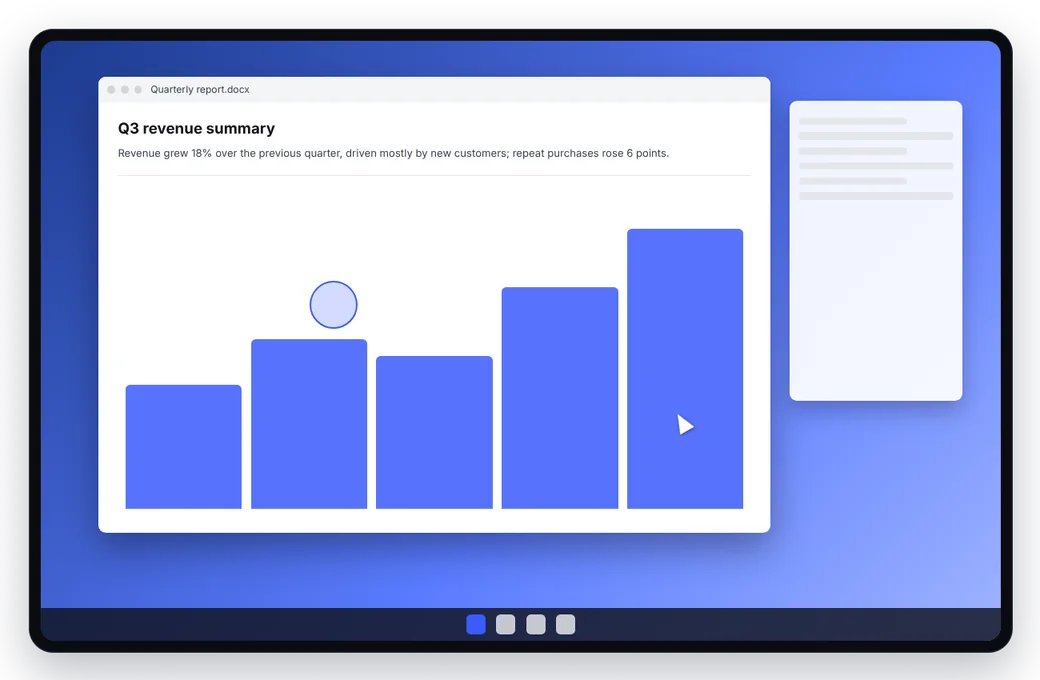
Your spare tablet becomes your PC's second screen
Scan one QR code and see your PC on an Android tablet or iPad, then control it with your fingers. Screen and input travel end-to-end encrypted between the PC and the tablet only.
- Tap to click, long-press to right-click, two fingers to scroll and zoom
- Type any language on the on-screen keyboard, Korean included
- End-to-end encrypted, never through a server
- Register as view-only, or revoke instantly at any time
Windows first, more on the way
LinkDesk starts on Windows. Here is what is available today and what is planned.
| Device | Role | Status |
|---|---|---|
| Windows 10 22H2 / Windows 11 (x64) | Main or secondary PC | Available · 1.0 |
| Android tablets · iPad | View and touch control (browser · Android app) | Beta · 1.5 |
| Windows laptop | Secondary display | Planned · 2.0 |
| macOS, Linux | Secondary PC | Planned · 2.x |
| Windows 7 / 8.1 | — | Not supported |
Why LinkDesk?
How it stacks up against other ways to solve the same problem.
| Compare | LinkDesk | KVM switch | Remote desktop | Server-relayed sharing apps |
|---|---|---|---|---|
| No extra hardware or cables | Supported | Not supported | Supported | Supported |
| Cursor crosses screen edges | Supported | Not supported | Not supported | Supported |
| Input and clipboard never pass through an outside server | Supported | Supported | Depends on the product | Not supported |
| Keeps the Korean/English input mode | Supported | Supported | Not supported | Depends on the product |
| File transfer only after the receiver approves | Supported | Not supported | Depends on the product | Depends on the product |
| Tablet as a second screen | Supported | Not supported | Depends on the product | Not supported |
| Cost | Free during beta | Buy hardware | Free to subscription | Often subscription |
SupportedSupportedNot supportedNot supportedDepends on the productDepends on the product
Simple plans, one-time purchase
Start free. Upgrade once if you need more PCs or file transfer — no subscription.
Free
For two PCs side by side.
- 2 PCs on the same LAN
- Keyboard & mouse sharing
- Text clipboard sync
Personal Pro
For a full multi-PC setup.
- Up to 5 PCs
- File transfer
- Profiles
- Image clipboard
- Perpetual for the major version + 12 months of updates
Display / Tablet
Use a tablet or laptop as an extra screen.
- Android tablet viewer
- Windows laptop as secondary display
Business
Volume licensing and support.
- Volume licenses
- Deployment guidance
- Priority support
Beta: prices are a pre-launch hypothesis and may change. Everything is free during the beta.
Frequently asked questions
Does my keyboard input or clipboard go through your servers?
Can I use a tablet as a second screen?
Is there an Android app?
Which versions of Windows are supported?
How does pairing work?
What happens if a PC disconnects?
Will it slow down my old laptop?
Do you collect usage data?
Is it free?
Turn your PCs into one workspace
Free during the beta. Install on two PCs and you are done in a minute.